
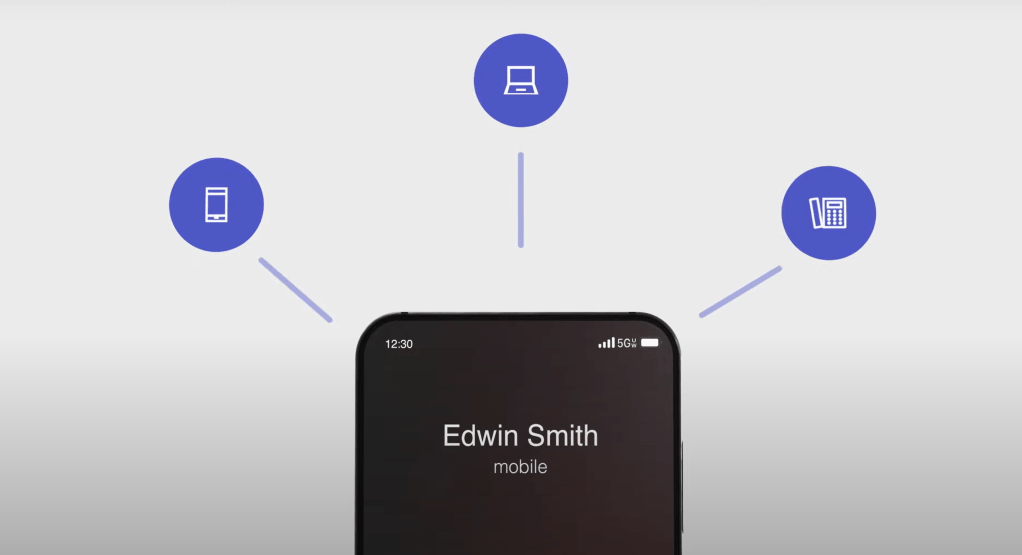
Teams Phone Mobile is another option for providing Public Switched Telephone Network (PSTN) connectivity with Microsoft Teams Phone System. With Teams Phone Mobile, a user’s SIM-enabled phone number is also their Teams phone number. Users can use a single phone number in Microsoft Teams across both their mobile service and desk lines, and seamlessly transition between networks and devices. Only Verizon currently offers this service.
If you are interested in learning more about Teams Phone Mobile, I recommend watching this one min demo video: Teams Phone Mobile demo
License Requirements
you need to ensure that the users needing Teams Phone Mobile are provisioned with both the licenses below:
- Teams Phone System SKU/E5
- Teams Phone Mobile add-on SKU, this is 0$ SKU, click here to add the license to your tenant.
To enable phone number assignments with Teams Phone Mobile, Have an eligible mobile subscription with your preferred operator that supports their SIM-enabled phone number to be used for Teams Phone. Your operator will upload the phone numbers to your Microsoft 365 tenant. You can view the numbers and the provider in the Teams admin center by going to Voice > Phone numbers.
Configure Teams Phone Mobile
- Assign a Phone System license and an Teams Phone Mobile add-on license. You can assign a Phone System license and a Teams Phone Mobile add-on license to your users from the Microsoft 365 admin center or by using PowerShell. For more information, see Assign Teams add-on licenses to users.
- Users who will be assigned phone numbers acquired with Teams Phone Mobile need to be in TeamsOnly mode. If your organization is in TeamsOnly mode, then all your users are in TeamsOnly mode.To check, in the Teams admin center, go to Teams > Teams upgrade settings. If your organization is in Islands mode, check if specific users are in TeamsOnly mode. Go to Users and select a user account. In the Account tab, under Teams upgrade, the coexistence mode should be set to TeamsOnly.
- Acquire numbers. Go to your operator’s website or contact them to order and acquire mobile SIM-enabled phone numbers with the Teams Phone Mobile service enabled. After your operator completes the order, they’ll upload SIM-enabled mobile numbers to your tenant. You can view the numbers and the provider in the Teams admin center by going to Voice > Phone numbers.
- Assign numbers. You can assign numbers to users from the Teams admin center or by using PowerShell. For more information, see Assign numbers.
Manage user incoming calling policy
You can manage a user’s incoming calling policies by using the Teams admin center or by using PowerShell. By default, incoming calls for Teams Phone Mobile users will ring the Teams app first on the user’s SIM-enabled mobile device.
- If a user’s incoming calling preference is set to the Teams app, all incoming calls will ring the Teams app on the SIM-enabled smartphone and any other Teams endpoints on other devices simultaneously.
- If a user’s incoming calling preference is set to the native dialer, all incoming calls ring the native dialer on the SIM-enabled smartphone and simultaneously rings all other Teams endpoints on other devices.
There are two ways to set the incoming calling policy:
 Talking to Myself
Leave a comment