
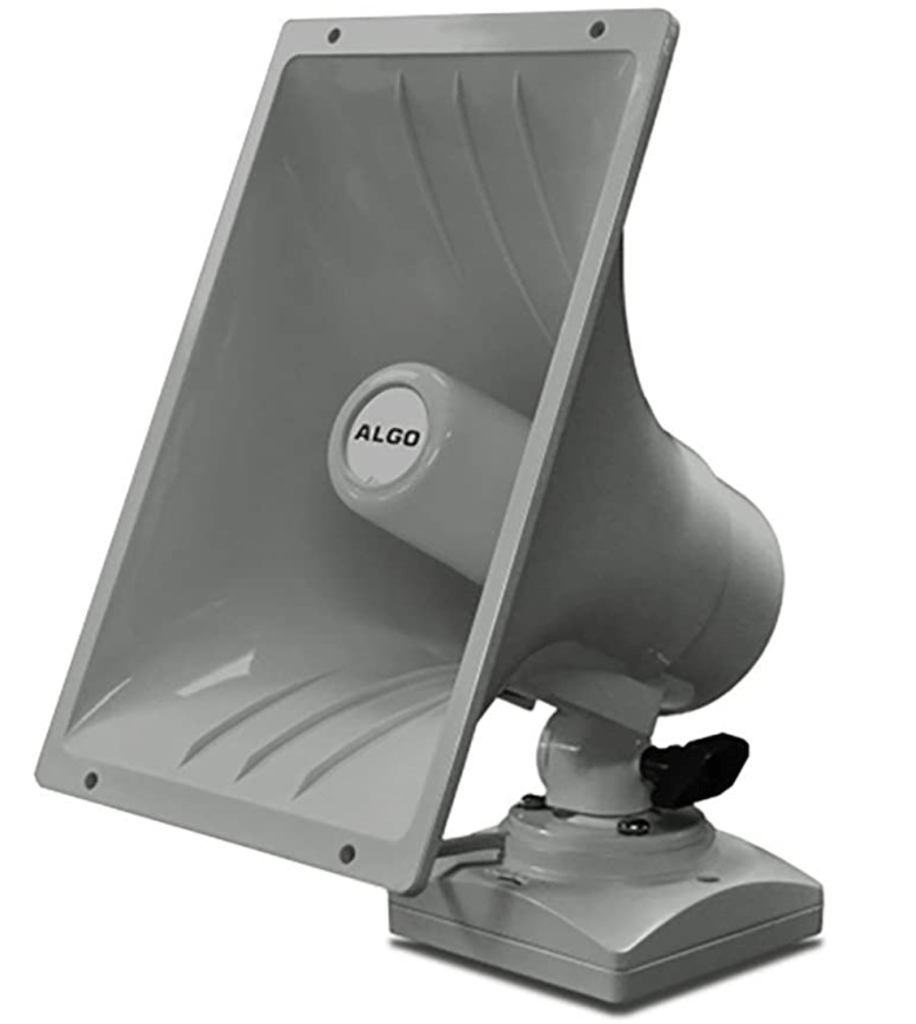
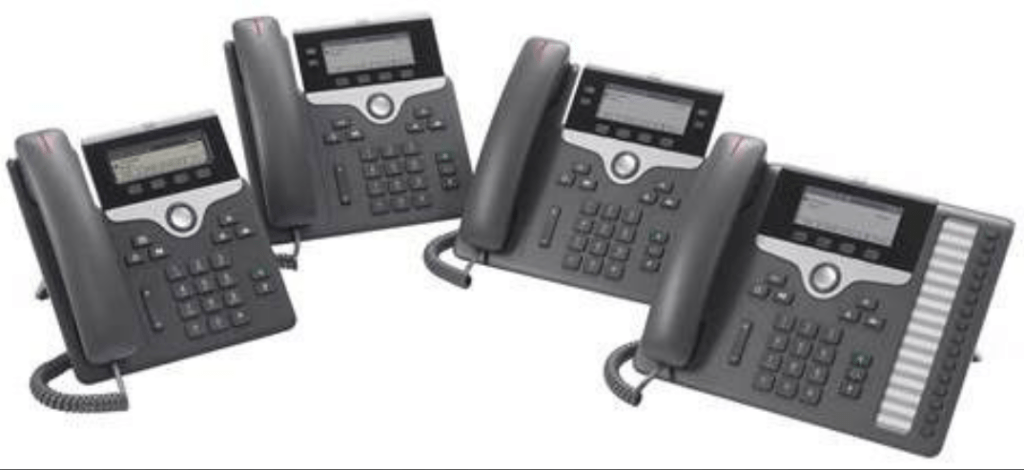
SIP Gateway enables your organization to use any compatible SIP device with Microsoft Teams while protecting your SIP device investments. You can now use your corporate credentials to sign in to Teams and make and receive calls using a compatible SIP device. Skype for Business IP phones with standard SIP firmware, Cisco IP phones with multiplatform SIP firmware, and SIP devices from Poly, Yealink, and AudioCodes are all compatible. It can also be used to register DECT devices, ATA devices (to support fax and analog devices), and Paging devices. See the SIP Gateway Enablement and Migration Playbook to learn how to configure your SIP devices for SIP Gateway.
SIP Gateway Features:
SIP Gateway connects compatible SIP devices to Teams to help your users migrate seamlessly to Teams telephony. Using SIP Gateway, your users can do all of the following:
- Make calls: SIP device users can make calls to the Public Switched Telephone Network (PSTN), to other SIP devices, and to Teams and Skype for Business users. SIP device users can only call users who have phone numbers.
- Receive calls: SIP device users can receive a call from the PSTN, from Teams or Skype for Business users who have SIP devices, and from Teams and Skype for Business client applications. The SIP device acts as a Teams endpoint. Inbound calls will also be forked to the user’s SIP device.
- Multiple simultaneous calls: A SIP device user in a call can put the call on hold to make or receive other calls. A SIP device user can also conference two calls.
- Hold/Resume and Mute/Unmute: A SIP device user can hold and resume or mute and unmute a call by using the features for those actions on the device.
- Voicemail: SIP device users can listen to electronically stored voice messages that callers leave for them.
- Message waiting indicator: SIP device users can receive notifications that alert them when they have new voicemail messages.
- Sign-in and sign-out: SIP devices users can sign in and sign out of Teams on the device.
- Dual-tone multi-frequency: SIP device users can press number keys to provide input during interactive voice response calls.
- Teams meetings: A SIP device user can join a Teams meeting by dialing the meeting access number. Meeting participants can add a SIP device user to the meeting by dialing out to user’s phone number or simply adding a participant by clicking on ‘Request to Join’ will also alert the user’s SIP device. Guest users from another organization can be added to a Teams meeting by a participant who dials out to a guest user’s number to include that guest.
- Call transfers: SIP device users can transfer calls. SIP Gateway supports both blind and consultative transfers.
- Local call forwarding: A SIP device user can set forwarding rules (always, on timeout, and busy) for the device. If the device is connected to the SIP Gateway, then the call will be redirected to the target address based on the rule that the device user set. To make local call forwarding work, the admin must set the
AllowCallRedirectattribute inSet-CsTeamsCallingPolicytoEnabled. - Offboard stale devices: SIP Gateway supports auto offboarding of stale devices provisioned for a tenant. Paired (signed-in) devices will be offboarded if not connected for 30 days, and unpaired (signed-out) devices after 14 days. An offboarded device can be re-onboarded after a factory reset.
- Set DND from SIP devices: You can use your SIP device for setting and fetching your Teams Do Not Disturb (DND) status. To set the DND status for your Teams account from your SIP device, dial the feature code *30* on the SIP device. To reset your Teams DND status, dial *31* from the SIP device. Dialing *31* clears the user-configured presence status, in this case DND.
- Call Queues and voice apps support: Customers can use SIP devices as call queue agents with some restrictions, for instance, SIP Gateway doesn’t publish presence for devices hence presence based routing is not supported.
- Emergency calling: For SIP devices that share network attributes, SIP Gateway supports dynamic emergency calling (dynamic E911). SIP Gateway will continue to support emergency calling based on registered addresses for devices that do not share location attributes or if the location is not resolved dynamically for any reason.
SIP Gateway Licensing Requirements:
From a Licensing standpoint, Please ensure the SIP devices have the following licenses assigned:
- Microsoft Phone System License or Teams Shared Device License (incase this is a Common Area Phone)
- Microsoft Calling Plan License or No license needed incase you are using Direct Routing or Operator Connect.
****If you use Cisco phones, please make sure you have a Cisco migration license. This is necessary in order to obtain the Multiplatform Phone firmware (MPP), which allows it to register with call control systems other than Cisco. Click here for a comprehensive migration guide.
Configuring SIP Gateway:
The following are the high-level steps required to configure SIP Gateway. you can find Instructions with extensive detail in the SIP Gateway Enablement and Migration Playbook and Learn website.
- Ensure that all phones, ATAs, and other SIP devices are running compatible firmware according to the compatibility guide.
- Set the Provisioning server URL to Teams once all devices have compatible firmware. This can be done manually device by device or using DHCP. Please note the following when using the DHCP option:
- For Yealink phones, use option 66.
- For Cisco, Poly, and AudioCode phones, use option 160.
- Enable SIP Gateway for users in the Teams Admin Center portal. This is done by calling Policies. Assign the calling policies to the users who need them or enable them globally if the entire organization requires access.
****For Cisco devices, Please ensure to append the provisioning server URL by adding /$PSN.xml at the end. For Eg for Americas region the provision url will be:http://noam.ipp.sdg.teams.microsoft.com/$PSN.xml
Configure Conditional Access:
Because SIP devices are not managed by Intune, the conditional access checks applied to them are more stringent than those applied to users. Because SIP Gateway authenticates SIP devices with Azure AD, if your organization uses Conditional Access for corporate network devices, SIP Gateway IP addresses should be excluded.Also, if your devices are using the new sign-in experience, you should exempt either the Teams app or the SIP Gateway App (ID – 0ab9de21-b802-4d77-b279-1ad41ca233b4) from conditional access checks.
 Talking to Myself
Leave a comment